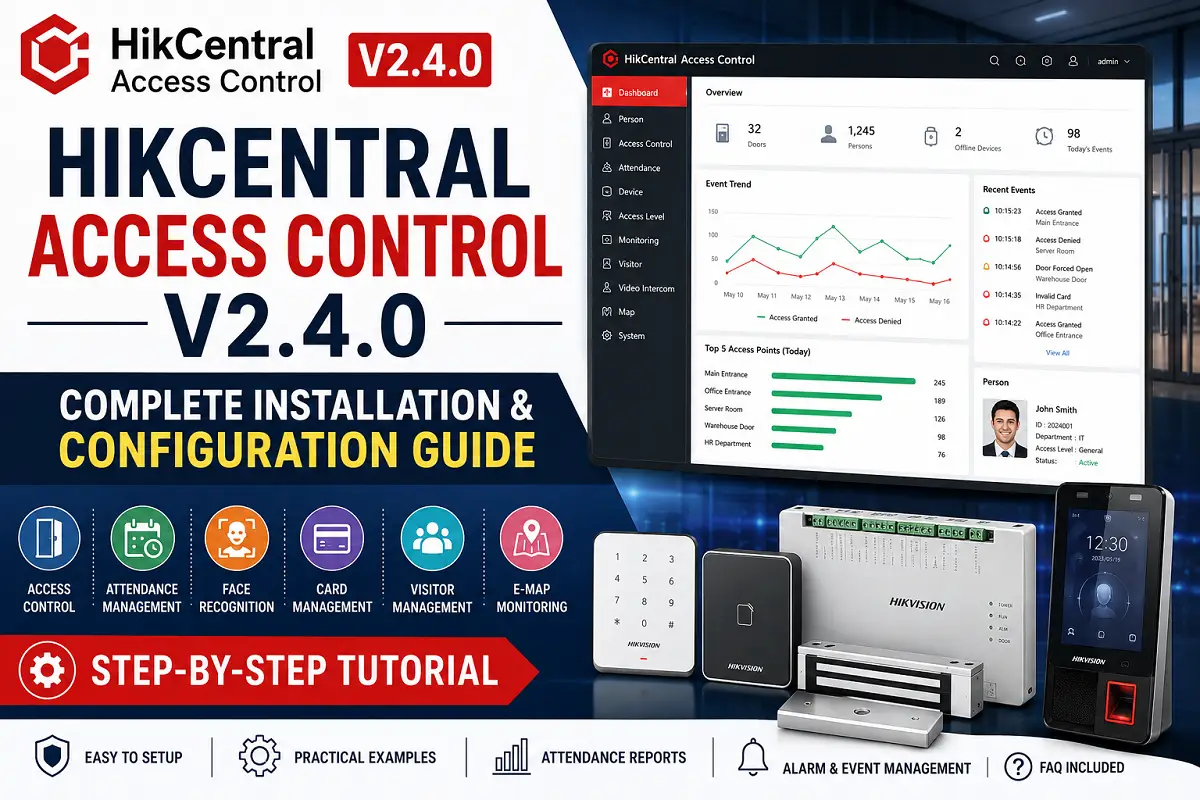
HikCentral Access Control V2.4.0 is a dedicated access control and attendance management platform developed by Hikvision. It is designed for managing access control devices, employee attendance, visitor management, door permissions, and video intercom systems from a centralized platform. The software supports up to 16 doors and 3,000 users in its standard configuration and provides web and mobile access for administrators. (Hikvision)
- Key Features
- System Requirements
- Step 1: Download the Software
- Step 2: Install HikCentral Access Control
- Step 3: Create Administrator Account
- Step 4: Log in to the Web Client
- Step 5: Add Access Control Devices
- Step 6: Configure Areas and Doors
- Step 7: Add Employees
- Step 8: Enroll Credentials
- Step 9: Create Access Levels
- Step 10: Configure Time Attendance
- Step 11: Configure Event & Alarm Rules
- Step 12: Configure E-Map
- Step 13: Generate Attendance Reports
- Important Notes
- Common Troubleshooting
- Frequently Asked Questions (FAQ)
- Conclusion
Key Features
- Access Control Management
- Time & Attendance Management
- Visitor Management
- Video Intercom Integration
- E-Map Monitoring
- Multi-Factor Authentication
- Face Recognition Support
- Fingerprint Authentication
- Card Management
- Attendance Reporting
The platform supports multiple authentication methods, including cards, fingerprints, facial recognition, QR codes, and PIN codes. (Git Security)
System Requirements
Minimum Requirements
- Intel Core i3 Processor
- 4 GB RAM
- 256 GB SSD
- Windows 10/11 64-bit
- Google Chrome or Microsoft Edge
Recommended Requirements
- Intel Xeon Processor
- 16 GB RAM
- SSD Storage
- Windows Server 2019 or later
- Gigabit Network
HikCentral Access Control V2.4.0 uses PostgreSQL as its database platform and supports modern browsers such as Chrome, Firefox, Safari, and Edge.
Step 1: Download the Software
- Download HikCentral Access Control V2.4.0 from the official Hikvision software portal.
- Extract the installation package.
- Run Setup.exe as Administrator.
Important: Temporarily disable antivirus if installation files are blocked.
Step 2: Install HikCentral Access Control
- Launch Setup.exe.
- Select installation language.
- Accept the license agreement.
- Click Install.
- Wait until all components are installed.
The installer automatically checks system compatibility before installation.
Step 3: Create Administrator Account
After installation:
- Open HikCentral Access Control.
- Create an Administrator username.
- Set a strong password.
- Save the credentials securely.
Password Best Practices
- Minimum 8 characters
- Uppercase and lowercase letters
- Numbers
- Special characters
Step 4: Log in to the Web Client
Open your browser and enter:
Example:
Log in using the administrator credentials created during activation.
Step 5: Add Access Control Devices
- Navigate to Device Management.
- Click Add Device.
- Enter:
- Device Name
- IP Address
- Username
- Password
- Click Add.
Supported devices include:
- Face Recognition Terminals
- Fingerprint Terminals
- Door Controllers
- Card Readers
- Video Intercom Devices
Step 6: Configure Areas and Doors
Create areas based on your site structure.
Example:
Head Office
├── Main Entrance
├── HR Department
├── Accounts Department
Warehouse
├── Entry Gate
├── Storage Area
This structure simplifies user and door management.
Step 7: Add Employees
- Open Person Management.
- Click Add Person.
- Enter:
- Employee Name
- Employee ID
- Department
- Upload Profile Photo.
You can also import users using Excel files.
Step 8: Enroll Credentials
Assign one or more credentials:
Access Card
Register employee access cards.
Fingerprint
Capture fingerprints using supported terminals.
Face Recognition
Upload face images or enroll directly from terminals.
PIN Code
Assign unique PINs for authentication.
The software supports multiple credential types for enhanced security.
Step 9: Create Access Levels
- Open Access Level Management.
- Create a new access level.
- Select authorized doors.
- Configure access schedules.
- Assign employees.
Example:
Office Staff:
- Main Entrance
- Office Floor
Management:
- Main Entrance
- Office Floor
- Server Room
Step 10: Configure Time Attendance
- Open Attendance Module.
- Create Work Shifts.
- Configure Holidays.
- Define Overtime Rules.
- Save Settings.
The platform provides attendance reports and shift management features suitable for HR departments.
Step 11: Configure Event & Alarm Rules
Navigate to Event Center.
Configure:
- Door Forced Open
- Door Held Open
- Invalid Card Swipes
- Access Denied Events
- Device Offline Alerts
Real-time alarms help administrators respond quickly to security incidents.
Step 12: Configure E-Map
Upload:
- Building Layout
- Floor Plans
- Office Maps
Place:
- Doors
- Access Controllers
- Alarm Inputs
E-Map monitoring improves operational awareness.
Step 13: Generate Attendance Reports
Available reports include:
- Daily Attendance
- Late Arrival Report
- Absence Report
- Overtime Report
- Monthly Attendance Summary
Reports can be exported for HR processing.
Important Notes
⚠ Always assign static IP addresses to access control devices.
⚠ Use SSD storage for better database performance.
⚠ Synchronize server time using NTP.
⚠ Back up the database regularly.
⚠ Test every door after configuration.
⚠ Verify card, fingerprint, and face authentication before deployment.
⚠ Limit administrator access to authorized personnel only.
Common Troubleshooting
Device Offline
Possible Causes:
- Wrong IP Address
- Network Failure
- Firewall Restriction
Solution:
Verify connectivity and device credentials.
Face Recognition Not Working
Possible Causes:
- Poor Image Quality
- Incorrect Enrollment
Solution:
Re-enroll face credentials using a clear front-facing photo.
Attendance Records Missing
Possible Causes:
- Incorrect Shift Configuration
- Time Synchronization Issues
Solution:
Verify attendance rules and system time.
Frequently Asked Questions (FAQ)
Is HikCentral Access Control V2.4.0 free?
The platform offers core access control and attendance features and can be deployed for small-to-medium environments, depending on licensing requirements.
How many users can it manage?
The platform supports up to 3,000 persons and 15,000 cards under supported configurations.
Does it support face recognition?
Yes. The software supports facial recognition authentication alongside cards, fingerprints, QR codes, and PIN codes.
Can it manage attendance?
Yes. It includes attendance management, shift management, holiday management, overtime tracking, and reporting features.
Does it support mobile access?
Yes. Mobile clients are available for remote access and management.
Can it integrate with video intercom systems?
Yes. HikCentral Access Control supports Hikvision video intercom integration.
Conclusion
HikCentral Access Control V2.4.0 is a lightweight yet powerful access control and attendance management platform suitable for offices, schools, factories, warehouses, hospitals, and commercial buildings. By following this step-by-step guide, administrators can quickly deploy the system, manage employees, configure door permissions, monitor events, and generate attendance reports from a single interface.
Latest Post
- CCTV Cameras Can Be Hacked: How to Secure Your CCTV in 2026
- India’s CCTV Market Is Changing—Here’s What It Means for Hikvision, Dahua and Indian Brands
- Guanlan Encoding by Hikvision – Features, Benefits & Complete Guide (2026)
- HikTech Star Show 2026 – Complete Guide, Benefits, Registration & Tips
- Plugins for Eco Series – Download, Install & Fix Plugin Issues