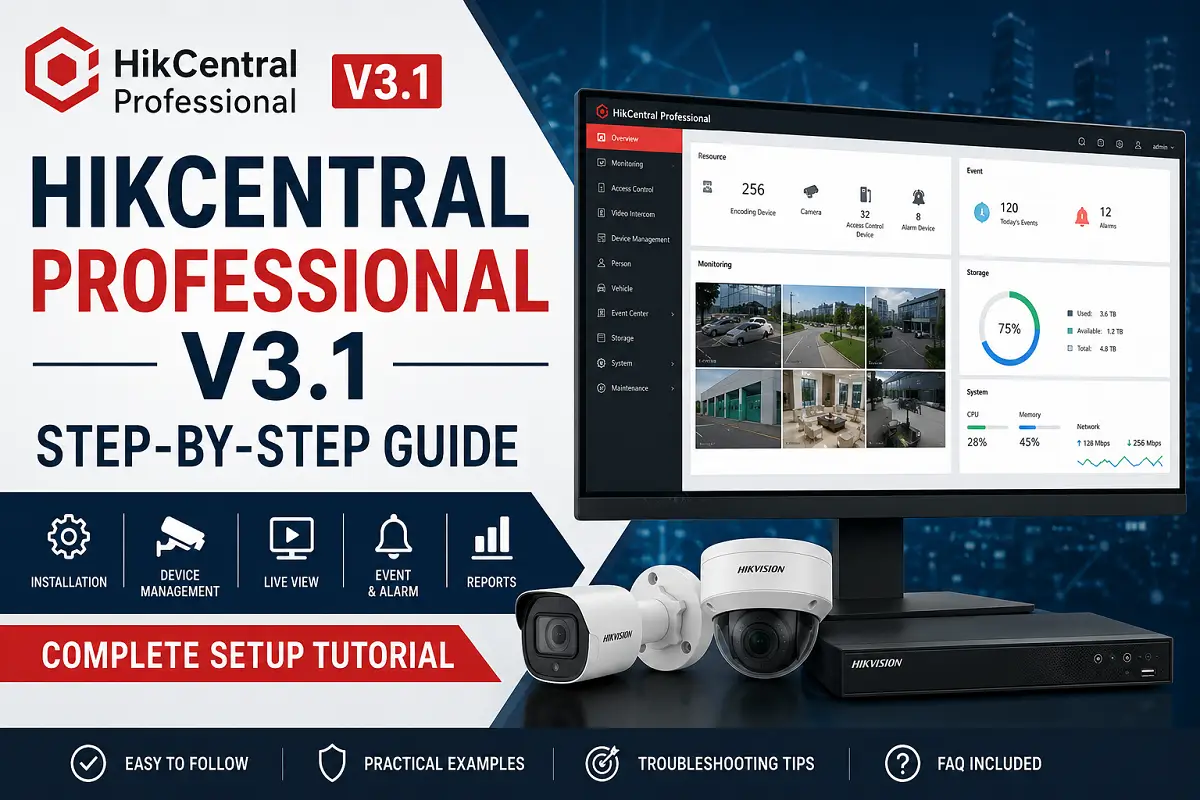
HikCentral Professional V3.1 is a centralized security management platform developed by Hikvision. It allows security operators and administrators to manage CCTV cameras, NVRs, access control devices, video intercom systems, alarm systems, and other security equipment from a single interface.
This guide explains the complete installation and initial configuration process of HikCentral Professional V3.1 for beginners and system integrators.
- Before You Begin
- Step 1: Download HikCentral Professional V3.1
- Step 2: Start the Installation Wizard
- Step 3: Configure Database Settings
- Step 4: Configure Server Information
- Step 5: Complete Installation
- Step 6: Activate HikCentral Professional
- Step 7: Log in to the Web Client
- Step 8: Add Devices
- Step 9: Create Organizational Structure
- Step 10: Configure Live View
- Step 11: Configure Recording
- Step 12: Configure User Roles
- Step 13: Configure Event & Alarm Management
- Step 14: Configure Maps (Optional)
- Step 15: Verify System Health
- Important Notes
- Common Troubleshooting
- Frequently Asked Questions (FAQ)
- Is HikCentral Professional V3.1 free?
- How many cameras can HikCentral Professional V3.1 support?
- Can I manage multiple NVRs from one HikCentral server?
- Can I access HikCentral remotely?
- Does HikCentral support access control systems?
- Can HikCentral record directly from IP cameras?
- Which browser works best with HikCentral Professional?
- Conclusion
Before You Begin
Minimum Recommended System Requirements
For Small Installations
- Intel Core i5 Processor
- 8 GB RAM
- 250 GB SSD
- Windows Server 2019 / Windows 10 64-bit
- Stable Network Connection
For Medium to Large Installations
- Intel Xeon Processor
- 16–32 GB RAM
- 500 GB+ SSD Storage
- Dedicated Database Server
- Gigabit Network Infrastructure
Step 1: Download HikCentral Professional V3.1
- Download the HikCentral Professional V3.1 installation package from the official Hikvision portal.
- Extract the ZIP package.
- Disable antivirus temporarily if it blocks installation files.
- Run the installer as Administrator.
Important:
Always verify that the software version matches the device firmware compatibility requirements.
Step 2: Start the Installation Wizard
- Double-click Setup.exe.
- Select your preferred language.
- Click Next.
- Accept the License Agreement.
- Click Install.
The installer will automatically check:
- Operating System Compatibility
- Database Requirements
- Disk Space Availability
- Network Ports
If any prerequisite is missing, install it before proceeding.
Step 3: Configure Database Settings
HikCentral requires a database to store configuration and event information.
Option A: Built-in Database
Recommended for:
- Small Projects
- Testing Environments
- Training Labs
Option B: Microsoft SQL Server
Recommended for:
- Enterprise Installations
- Large Camera Deployments
- Multi-site Projects
Enter:
- Database Server Address
- Username
- Password
Click Test Connection and then Next.
Step 4: Configure Server Information
Specify:
- Server Name
- IP Address
- Web Access Port
- Service Port
Typical ports include:
- HTTP: 80
- HTTPS: 443
Ensure these ports are not already used by another application.
Step 5: Complete Installation
- Click Install.
- Wait for the installation to finish.
- Click Finish.
The installation may take several minutes, depending on system performance.
Step 6: Activate HikCentral Professional
After installation:
- Open HikCentral Professional.
- Create the Administrator Account.
- Set a strong password.
Password recommendations:
- Minimum 8 characters
- Uppercase Letters
- Lowercase Letters
- Numbers
- Special Characters
Store credentials securely.
Step 7: Log in to the Web Client
Open a browser and enter:
Example:
Login using:
- Username: admin
- Password: Your configured password
The HikCentral Dashboard will load.
Step 8: Add Devices
Adding an NVR
- Go to Device Management.
- Click Add Device.
- Enter:
- Device Name
- IP Address
- Username
- Password
- Click Add.
The system will verify connectivity.
Adding IP Cameras
- Navigate to Device Management.
- Select Camera.
- Add a camera manually or through device discovery.
- Save settings.
Verify the camera status shows:
Online
Step 9: Create Organizational Structure
For easier management:
Example:
Head Office
├── Reception
├── Warehouse
├── Parking Area
Branch Office
├── Entrance
├── Office Floor
├── Server Room
Proper organization simplifies monitoring and reporting.
Step 10: Configure Live View
- Open Live View.
- Create a new View Group.
- Drag cameras into the viewing windows.
- Save the layout.
Common layouts:
- 1 Screen
- 4 Screen
- 9 Screen
- 16 Screen
- 32 Screen
Step 11: Configure Recording
- Open Storage Management.
- Select Recording Schedule.
- Choose recording mode:
Continuous Recording
Records 24/7.
Motion Detection Recording
Records only when motion is detected.
Event-Based Recording
Records during alarms or events.
Save the schedule.
Step 12: Configure User Roles
Create separate user accounts for:
Administrator
Full access.
Operator
Monitoring only.
Supervisor
Monitoring plus report generation.
Applying user permissions improves security.
Step 13: Configure Event & Alarm Management
Navigate to Event Center.
Configure:
- Motion Detection
- Video Loss
- Camera Tampering
- Intrusion Detection
- Line Crossing
- Face Recognition Events
Set notification actions such as:
- Popup Alerts
- Email Notifications
- Alarm Outputs
Step 14: Configure Maps (Optional)
Upload:
- Building Layout
- Floor Maps
- Campus Maps
Place camera icons on the map for quick navigation.
This feature is especially useful in large installations.
Step 15: Verify System Health
Check:
- Device Status
- Storage Status
- Recording Status
- Alarm Status
- Network Health
Resolve any offline devices immediately.
Important Notes
⚠ Use SSD storage for the operating system and database.
⚠ Keep server time synchronized using NTP.
⚠ Use static IP addresses for all cameras and NVRs.
⚠ Enable HTTPS for secure communication.
⚠ Create regular backups of the HikCentral database.
⚠ Update firmware before integrating devices.
⚠ Test recording playback after installation.
⚠ Restrict administrator access to authorized personnel only.
Common Troubleshooting
Device Shows Offline
Possible Causes:
- Wrong IP Address
- Wrong Password
- Firewall Blocking Communication
- Network Failure
Solution:
Verify connectivity using Ping and web access.
Cannot log in
Possible Causes:
- Incorrect Credentials
- Account Locked
Solution:
Reset the administrator account according to Hikvision procedures.
No Video Display
Possible Causes:
- Camera Stream Disabled
- Codec Issue
- Network Bandwidth Limitation
Solution:
Verify the camera live view directly from the device.
Frequently Asked Questions (FAQ)
Is HikCentral Professional V3.1 free?
A basic version may be available for evaluation, but production deployments typically require licenses based on system modules and device counts.
How many cameras can HikCentral Professional V3.1 support?
The supported number depends on server specifications and purchased licenses.
Can I manage multiple NVRs from one HikCentral server?
Yes. HikCentral is designed for centralized management of multiple NVRs and cameras.
Can I access HikCentral remotely?
Yes. Remote access can be configured through secure network settings and proper port forwarding or VPN access.
Does HikCentral support access control systems?
Yes. It can integrate CCTV, access control, alarm systems, and video intercom devices.
Can HikCentral record directly from IP cameras?
Yes. Depending on licensing and configuration, cameras can be managed and recorded through the platform.
Which browser works best with HikCentral Professional?
Modern versions of Microsoft Edge and Google Chrome are generally recommended.
Conclusion
HikCentral Professional V3.1 is a powerful centralized security management platform suitable for small, medium, and enterprise-level surveillance projects. Proper installation, device organization, recording configuration, and user management are essential for maintaining a reliable security system. Following the steps in this guide will help you deploy a stable and efficient HikCentral environment while minimizing common installation issues.
Latest Post
- CCTV Cameras Can Be Hacked: How to Secure Your CCTV in 2026
- India’s CCTV Market Is Changing—Here’s What It Means for Hikvision, Dahua and Indian Brands
- Guanlan Encoding by Hikvision – Features, Benefits & Complete Guide (2026)
- HikTech Star Show 2026 – Complete Guide, Benefits, Registration & Tips
- Plugins for Eco Series – Download, Install & Fix Plugin Issues