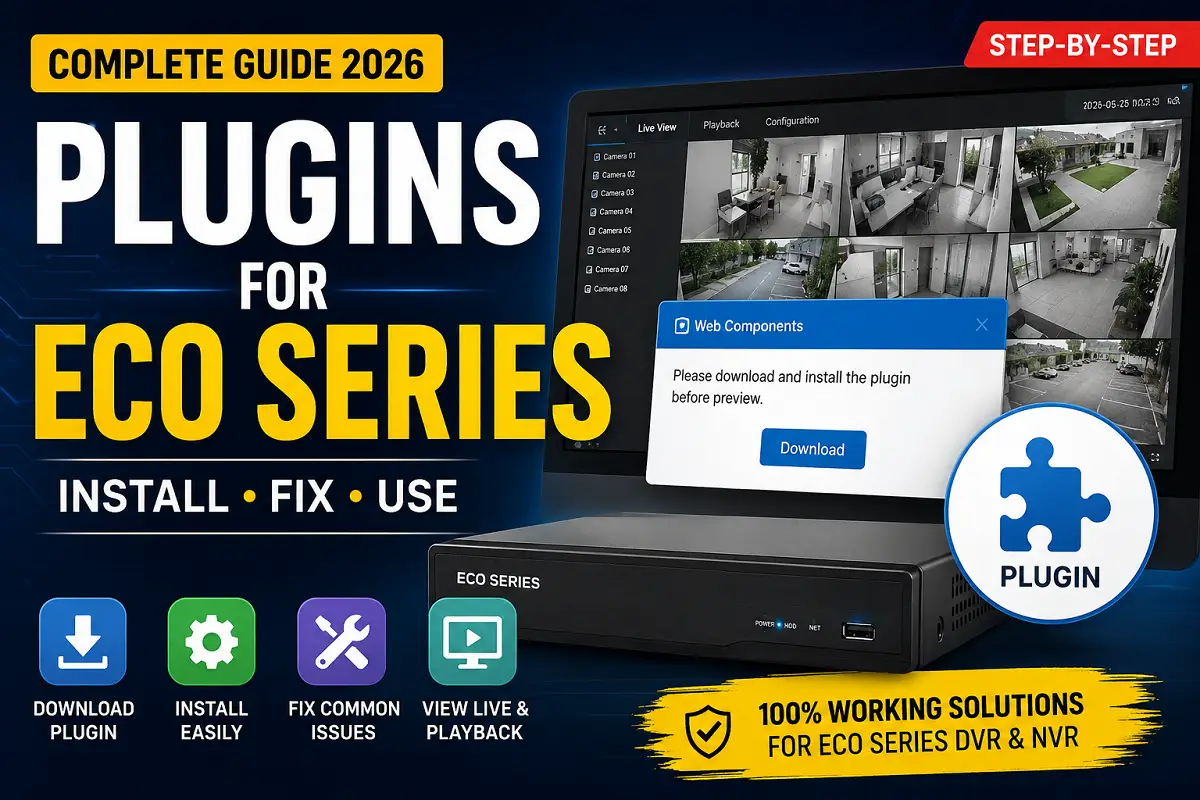
If you use an Eco Series DVR or NVR, you may see a message prompting you to download and install the Eco Series plugin before viewing live video or playback in a web browser. This is a common requirement on many older surveillance devices because browsers cannot natively display the camera’s video stream. Let’s Know About Plugins for Eco Series.
In this guide, you’ll learn:
- What the Eco Series plugin is
- Why is it required
- How to install it correctly
- How to solve common plugin errors
- Best practices for smooth operation
What Is the Eco Series Plugin?
The Eco Series plugin is a small software component installed on your Windows computer. It allows your browser to communicate with your DVR or NVR and display:
- Live View
- Video Playback
- Remote Configuration
- Snapshot Capture
- Recording Download
Many CCTV manufacturers provide the plugin directly from the recorder’s web interface after you log in. Depending on the firmware, it may appear as Web Components or Local Service.
Why does the Eco Series need a Plugin?
Unlike modern HTML5-based systems, many earlier Eco Series recorders use technologies that require additional software to decode and display video inside a browser.
Without the plugin, you may experience:
- Black screen
- Live View is not loading
- Playback unavailable
- Download button missing
- “Please install plugin” message every login
Features of the Eco Series Plugin
After installation, the plugin enables:
- Live camera monitoring
- Playback of recorded footage
- PTZ camera control (supported models)
- Audio monitoring
- Image capture
- Video export
- Device configuration from the browser
How to Install the Eco Series Plugin
Step 1: Connect to the Recorder
Open your browser and enter the IP address of your Eco Series DVR/NVR.
Example:
http://192.168.1.64
Step 2: Log in
Enter:
- Username
- Password
Step 3: Download the Plugin
When prompted, click:
Download Plugin
or
Install Web Components
Some newer firmware labels the browser helper as Local Service instead of the older Web Components package. (Hikvision Portal)
Step 4: Close Your Browser
Before installation:
- Close Chrome
- Close Edge
- Close Firefox
This prevents installation conflicts.
Step 5: Install
Run the downloaded installer.
Allow:
- Windows Security Prompt
- User Account Control (UAC)
Finish installation.
Step 6: Restart Browser
Open your browser again.
Log in to the recorder.
The live preview should now work.
Supported Browsers
Depending on the firmware version:
| Browser | Support |
|---|---|
| Microsoft Edge | Yes |
| Google Chrome | Yes (newer firmware/models) |
| Firefox | Limited |
| Internet Explorer Mode | Recommended for older models |
Older recorders often work best with Microsoft Edge in Internet Explorer Mode, while newer firmware may support Chrome using the newer local service approach.
Common Plugin Problems
Plugin Keeps Asking to Install Again
Possible causes:
- The browser wasn’t closed during installation
- Plugin installation failed
- The old version is still installed
Fix:
- Uninstall the previous plugin
- Restart PC
- Install the latest plugin again
Black Screen After Plugin Installation
Possible reasons:
- The browser blocked the plugin
- Windows Firewall
- Antivirus interference
- Outdated firmware
Try:
- Restart browser
- Restart recorder
- Update firmware if available
Plugin Doesn’t Install
Check:
- Administrator permissions
- Windows Defender
- Antivirus software
- Corrupted download
Live View Works but Playback Doesn’t
Possible reasons:
- Storage not detected
- Recording schedule disabled
- Browser cache issue
Clear the browser cache and reconnect.
Tips for Better Performance
- Keep recorder firmware updated.
- Use the latest compatible plugin.
- Remove old plugin versions before installing a new one.
- Restart the computer after installation.
- Prefer Edge IE Mode for legacy devices if recommended by the manufacturer.
Frequently Asked Questions (FAQ)
Is the Eco Series plugin free?
Yes. The plugin provided by the device manufacturer is generally free to download from the recorder’s web interface.
Can I use Chrome?
Many newer firmware versions support Chrome with the appropriate local service, while older devices may still require Internet Explorer Mode.
Can I use the plugin on Windows 11?
Yes, provided the plugin and firmware support your recorder model.
Is installation required on every computer?
Yes.
The plugin installs locally on each Windows computer.
Can I uninstall the plugin later?
Yes.
You can remove it through:
Control Panel → Programs and Features
Why do I still see “Install Plugin”?
Try:
- Clear browser cache
- Reinstall plugin
- Restart browser
- Restart Windows
- Check firmware compatibility
Important Points
- Always download the plugin from your recorder’s login page or the manufacturer’s official support resources.
- Close every browser before installing.
- Do not keep multiple versions of similar CCTV plugins installed if conflicts occur.
- Update firmware when newer browser compatibility is available.
- Use administrator privileges during installation.
Final Thoughts
The Eco Series plugin is an essential component for many legacy DVR and NVR web interfaces. Once installed correctly, it enables reliable live viewing, playback, and remote management from a Windows computer. If you continue experiencing issues, verify your firmware version, remove older plugin installations, and use a browser configuration recommended for your recorder model.
Latest Post
- CCTV Cameras Can Be Hacked: How to Secure Your CCTV in 2026
- India’s CCTV Market Is Changing—Here’s What It Means for Hikvision, Dahua and Indian Brands
- Guanlan Encoding by Hikvision – Features, Benefits & Complete Guide (2026)
- HikTech Star Show 2026 – Complete Guide, Benefits, Registration & Tips
- Plugins for Eco Series – Download, Install & Fix Plugin Issues