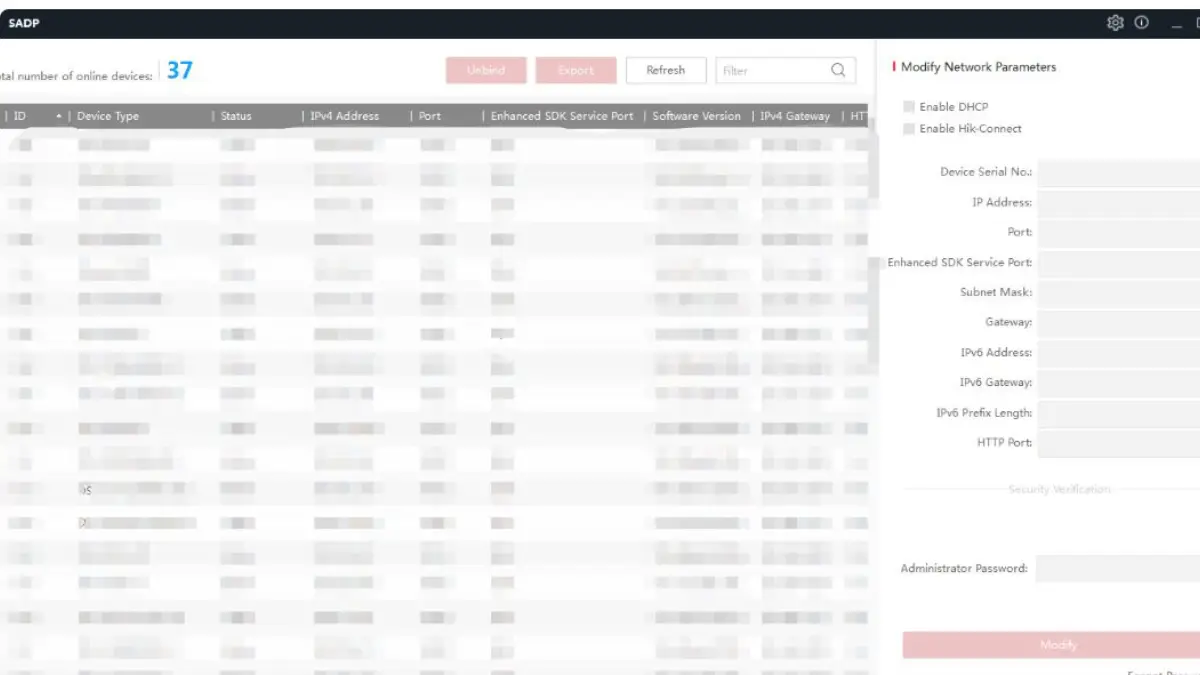
If you’ve spent any time setting up Hikvision cameras, you’ve hit this wall. You install the latest SADP, scan the network, find your device, click “Forgot Password” and… nothing works. The export fails. The reset file is rejected. The device just sits there, inactive, mocking you.
Nine times out of 10, the fix is annoyingly simple: you need an older version of SADP.
What SADP actually does
SADP, Search Active Device Protocol, scans your local network for Hikvision devices and lets you activate them, change IP addresses, and reset forgotten passwords. It’s free. It’s the first thing any Hikvision installer opens.
It finds devices by MAC address, populates a table with one device per row, and lets you pull up settings in a side panel. Straightforward enough. The problem occurs when your device’s firmware is older than the SADP version you’re running.
Why the SADP old version matters
The old SADP tool, version 2.0, is specifically what you need for cameras running firmware older than 5.3.0. If you grab the current installer from Hikvision’s site and try to reset the password on a 2016-era camera, the newer SADP just won’t cooperate.
SADP v2.2.1.100 doesn’t work properly with newer cameras and firmware. Version 3.0.0.2 handles older cameras, but newer cameras without passwords set just show as “Inactive” and you can only configure a password before doing anything else.
So the version mismatch cuts both ways. Too new of a tool for old hardware, and the password reset breaks. Too old of a tool for new hardware, and devices won’t show up at all.
The versions you’ll actually encounter
The version history looks roughly like this:
- v1.0 — the original, basically a bare network scanner
- v2.0 / v2.1 — the one most technicians keep on a USB drive, specifically because of password reset compatibility with older firmware
- v3.0.0.x through v3.0.1.4 — introduced in 2017-2019, brought the new password reset flow, support for GUID Mode, and Security Questions
- v3.0.5.7 — the current Windows version at 108MB, with four password reset methods, including GUID Mode and Security Question Mode
- v3.1.2.3 — the latest listed version as of early 2026
The jump from v2.x to v3. x was when Hikvision changed the password reset procedure entirely. That’s the break point. Old device, old firmware? Go back to v2.0.
What the reset process actually looks like
With v3.x on a supported device: open SADP, select the device, click “Forgot Password,” hit Export, save the file to your desktop, email it to Hikvision tech support (or submit via their portal), wait for a reset file back, import it. Done.
With v2.0 on older hardware: same general flow, but the interface is different, and the file format the device accepts matches the old method.
If you’re getting a “device rejected” error, close SADP and run it as administrator, then restart the process. That fixes it probably 40% of the time before you even need to think about version switching.
SADP is getting killed off anyway
Worth knowing: starting in April 2026, SADP will no longer receive updates. Hikvision is pushing everyone toward HiTools Delivery, their new all-in-one tool that combines device activation, network configuration, batch updates, and scenario-based setup.
So the old version question is about to get more complicated. For now, the version 2.0 workaround still works on legacy hardware. Whether HiTools Delivery will handle those same ancient devices the same way remains to be seen.
Where to actually get it
The safest place is Hikvision’s official site or their regional support portals. Some third-party sites have the old installers, but avoid third-party download sites. Only use the official Hikvision website to prevent malware or corrupted files.
A lot of experienced installers just keep every version they’ve ever used on a thumb drive. That’s probably the right call.
The whole old-version thing comes down to one rule: match your SADP version to your device’s firmware era. Old camera, old tool. New camera, new tool. When in doubt, try v2.0 first if you’re doing a password reset on legacy hardware, and v3. x if you’re activating something recently manufactured.
Latest Post
- CCTV Cameras Can Be Hacked: How to Secure Your CCTV in 2026
- India’s CCTV Market Is Changing—Here’s What It Means for Hikvision, Dahua and Indian Brands
- Guanlan Encoding by Hikvision – Features, Benefits & Complete Guide (2026)
- HikTech Star Show 2026 – Complete Guide, Benefits, Registration & Tips
- Plugins for Eco Series – Download, Install & Fix Plugin Issues