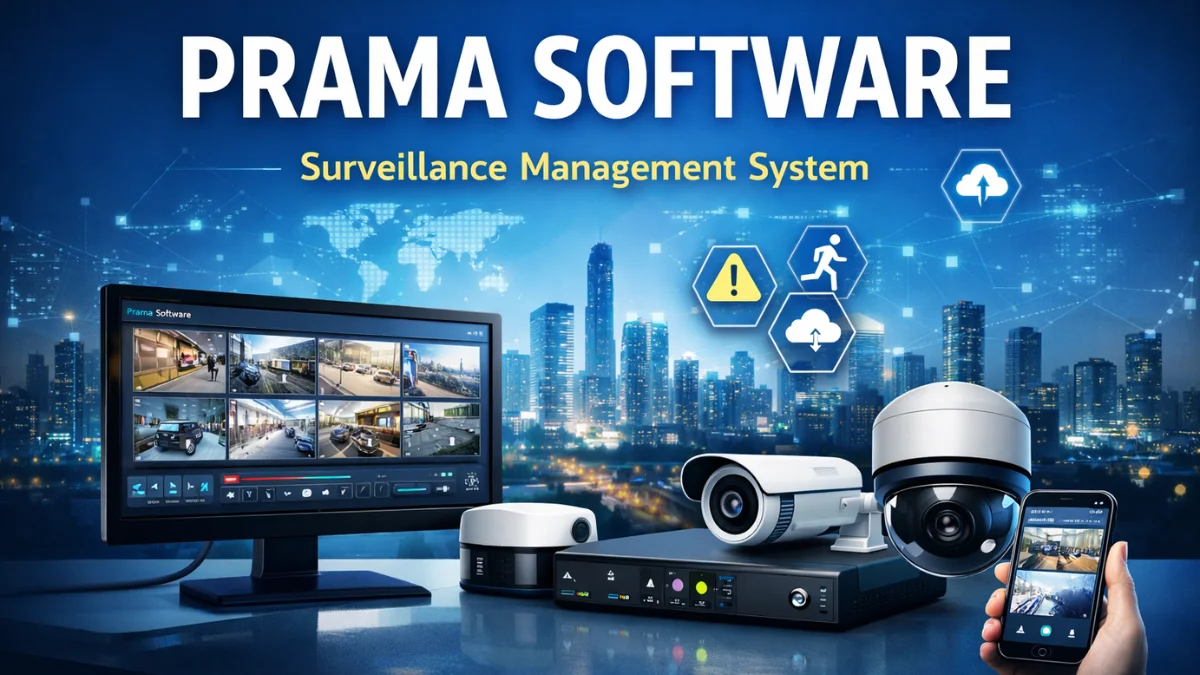
Prama software is a surveillance management platform designed for Prama India’s CCTV ecosystem. It allows users to monitor live cameras, playback recordings, configure devices, manage storage, and integrate advanced security solutions — all from a single interface. Whether you are an installer, CCTV business owner, or an end-user, understanding this software is essential for managing large and small surveillance setups efficiently.
What is Prama Software?
Prama Software is a centralized video management and configuration tool used to connect and control Prama CCTV cameras, NVRs, DVRs, and access systems. It helps users:
- View live camera feeds
- Playback and download recorded footage
- Configure device settings
- Manage multi-site surveillance
- Get real-time alerts and notifications
➡️ Best for: Residential, commercial, industrial, retail, and city surveillance solutions.
Key Features of Prama Software
⭐ Important Point: Designed to support large deployments with scalable architecture.
| Feature | Description |
|---|---|
| Device Management | Add, configure, monitor Prama devices in one dashboard |
| Live View & Playback | Watch live streams or check past footage instantly |
| Multi-Site Support | Manage multiple locations from one system |
| Storage Management | Control local/remote storage, NAS, cloud configurations |
| Smart Alerts | Motion detection, intrusion alerts, notification system |
| User Permission Control | Create admin/accounts with customized access |
Why Use Prama Software? – Main Benefits
✔ Easy integration with Prama India hardware
✔ Reliable performance for 24×7 surveillance setups
✔ Secure data protection using encryption & role-based access
✔ Scalable for projects like schools, hospitals, showrooms, and factories
🚀 Highlighted Benefit: Reduces dependency on manual monitoring and improves security efficiency.
How to Install Prama Software (Step-by-Step)
- Download the installer from the official Prama website or the device CD
- Run setup and choose the installation path
- Set a strong admin password
- Add devices using IP address, serial number, or auto-detect
- Perform network configuration (ONVIF/SDK if required)
- Create user accounts & permissions
- Configure storage and enable remote access
- Start live preview and recording
Prama Software Uses
- Homes & apartments
- Schools & colleges
- Hotels and PG / Hostels
- Retail shops and malls
- Warehouse & factory setups
- Banking and ATM surveillance
📌 Important Point: Suitable for both small 4-camera setups and large enterprise 500+ camera systems.
Troubleshooting Common Issues
| Problem | Solution |
|---|---|
| Device Not Showing | Check network IP range & firewall settings |
| No Video Feed | Confirm stream type and RTSP/ONVIF settings |
| Storage Not Detected | Reformat the drive or reset the path settings |
| Lag / Delay in Live View | Optimize bitrate or reduce resolution |
FAQ – Frequently Asked Questions
1. Is Prama software free to use?
Yes, the base software is usually free for standard use with Prama devices.
2. Can I use Prama software with non-Prama cameras?
Some third-party cameras work using the ONVIF protocol, but full compatibility may vary.
3. Does Prama software support remote access?
Yes, remote access is supported through network configuration and mobile apps.
4. Is cloud storage available?
Cloud or NAS storage can be configured depending on the model and subscription options.
5. What are the system requirements?
A Windows PC with a minimum i3 processor, 4GB RAM, and a stable network is recommended.
Conclusion
Prama software is a powerful and user-friendly solution for managing CCTV systems. It offers flexibility, scalability, and professional-grade security features, making it ideal for home users, installers, and big organizations.
✨ If you work in CCTV installation or security management, learning Prama software can boost your efficiency and service quality.
Latest Post
- CCTV Cameras Can Be Hacked: How to Secure Your CCTV in 2026
- India’s CCTV Market Is Changing—Here’s What It Means for Hikvision, Dahua and Indian Brands
- Guanlan Encoding by Hikvision – Features, Benefits & Complete Guide (2026)
- HikTech Star Show 2026 – Complete Guide, Benefits, Registration & Tips
- Plugins for Eco Series – Download, Install & Fix Plugin Issues