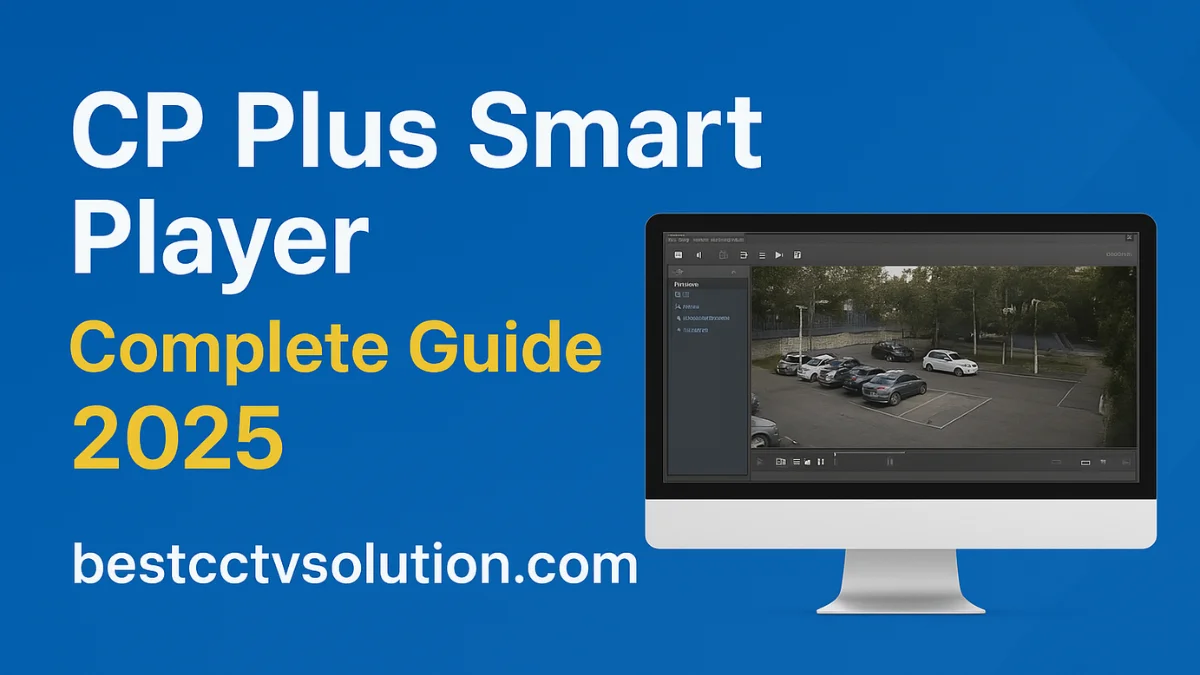
If you use CP Plus CCTV cameras, you must have heard about the CP Plus Smart Player. It’s a powerful video playback software that allows you to view, export, and manage recorded video files from your DVR or NVR system.
Whether you’re a technician or an end-user, this tool is essential for reviewing surveillance footage with ease. In this blog, we’ll explain everything you need to know — from downloading to using Smart Player effectively.
What is CP Plus Smart Player?
CP Plus Smart Player is a video playback software developed by CP Plus. It lets users open and view recorded footage stored on a hard drive, USB, or exported files from a CP Plus DVR/NVR.
It supports multiple formats and provides tools to analyze surveillance videos frame-by-frame.
Key Features of CP Plus Smart Player:
✅ Multi-Channel Playback: Play multiple camera recordings at once.
✅ Frame-by-Frame Analysis: Zoom into specific moments easily.
✅ Export Function: Save video clips in standard formats for sharing or evidence.
✅ User-Friendly Interface: Simple layout for beginners and professionals alike.
✅ Snapshot Option: Capture important images from recordings.
✅ Audio Support: View recordings with audio if supported by the camera.
How to Download CP Plus Smart Player:
- Visit the official CP Plus website – https://www.cpplusworld.com/
- Go to the Support → Downloads → Tools section.
- Find “CP Plus Smart Player” in the list.
- Click on the Download button and save the setup file.
- Once downloaded, install the software following the on-screen instructions.
How to Use CP Plus Smart Player:
Step 1: Launch the Smart Player
Open the software after installation.
Step 2: Add Your Video Files
Click “Open File” or “Open Folder” and select the recorded files from your USB or hard disk.
Step 3: Playback Controls
Use the play, pause, fast-forward, or slow-motion buttons to control playback.
Step 4: Take Snapshots
You can capture images using the snapshot button during playback.
Step 5: Export Clips
Select start and end times, then export the required video clip for backup or sharing.
Advantages of Using CP Plus Smart Player:
- Easy to use, even for non-technical users.
- No need foran internet connection.
- High compatibility with CP Plus DVR/NVR recordings.
- Lightweight and fast performance.
Common Problems and Solutions:
❌ Issue: Video not playing or showing a black screen.
✅ Solution: Ensure correct codec installation or re-export file from DVR.
❌ Issue: No audio in playback.
✅ Solution: Check if your camera supports audio recording and enable the speaker icon in the player.
❌ Issue: Software not opening.
✅ Solution: Run as administrator or reinstall with the updated version.
FAQs About CP Plus Smart Player
Q1. Is CP Plus Smart Player free to use?
👉 Yes, it’s a completely free tool provided by CP Plus for all users.
Q2. Can I use it on Windows 11?
👉 Yes, the latest version supports Windows 10 and Windows 11.
Q3. Can I play other brand DVR videos on CP Plus Smart Player?
👉 It may not support other brands unless they use the same file format (.dav).
Q4. Can I take screenshots in Smart Player?
👉 Yes, use the Snapshot option to capture frames.
Q5. Where are snapshots saved?
👉 You can find them in the default folder (usually “Documents/Smart Player/Snapshot”).
Final Thoughts:
The CP Plus Smart Player is an essential utility for anyone using CP Plus security systems. It ensures smooth video playback, simple export options, and accurate surveillance review.
If you face issues while using it, try reinstalling or checking for the latest version from the official CP Plus website.
Highlighted Keywords:
- CP Plus Smart Player
- CP Plus Smart Player Download
- CP Plus Video Playback Software
- How to Use CP Plus Smart Player
- CP Plus CCTV Tools
Latest Post
- CCTV Cameras Can Be Hacked: How to Secure Your CCTV in 2026
- India’s CCTV Market Is Changing—Here’s What It Means for Hikvision, Dahua and Indian Brands
- Guanlan Encoding by Hikvision – Features, Benefits & Complete Guide (2026)
- HikTech Star Show 2026 – Complete Guide, Benefits, Registration & Tips
- Plugins for Eco Series – Download, Install & Fix Plugin Issues