As a professional CCTV expert with years of experience installing and optimizing CP Plus surveillance systems, I’ve helped countless users enjoy their security feeds on the big screen. Viewing CP Plus cameras on Android TV turns your living room into a convenient monitoring hub—ideal for families and small offices.
Whether you have a CP Plus DVR/NVR or Wi-Fi cameras (like the ezyKam series), this guide walks you through everything. The main apps are gCMOB (best for DVR/NVR systems) and ezyKam+ (great for standalone Wi-Fi cameras). These often require APK sideloading for full Android TV compatibility.
Prerequisites: CP Plus App for Android TV
- Android TV or Smart TV running Android OS.
- Stable internet (same network as your CCTV or via cloud).
- Your CP Plus system is already set up and online.
- USB pendrive for APK installation.
- Enable “Unknown Sources” in TV settings.
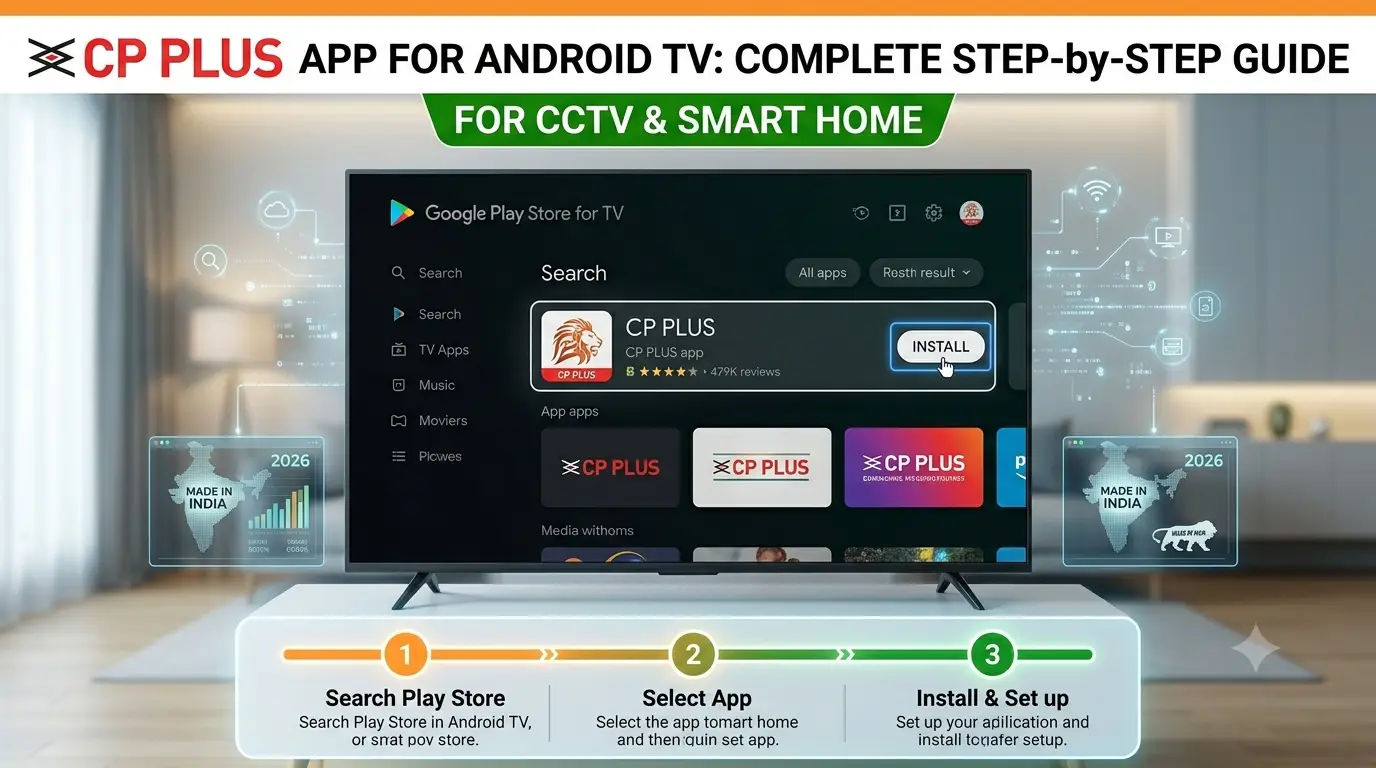
Step-by-Step Guide: Installing gCMOB on Android TV (for DVR/NVR)
- Prepare Your TV
Go to Settings > Apps > Security & Restrictions and allow installation from unknown sources. Install a file manager app from the Play Store. - Download the APK
Get a TV-optimized gCMOB APK (often called gCMOB HD for Android TV) on your phone or PC and copy it to a USB drive. - Install the App
Insert the USB into your TV, open the file manager, locate the APK, and install it. - Set Up the App
Open gCMOB. Add your device using InstaOn (cloud/QR code) or manual details (Serial Number, Username, Password).
Test live view—enjoy multi-channel preview (up to 16 channels), playback, and PTZ controls. - Optimize for TV
Install a screen rotation app if needed. Adjust stream quality in settings for smooth big-screen performance.
For ezyKam Wi-Fi Cameras: Install ezyKam+ (or Easy Cam Plus) and link your account.
Key Features on Android TV
- Real-time multi-camera live view.
- Playback recorded footage directly.
- Motion alerts and notifications.
- Digital zoom and easy remote control.
Important Expert Tip
Security First – Change Default Passwords Immediately!
This is the single most important step in any CCTV setup. Default credentials are a major risk. Update the admin password on your NVR/DVR, cameras, and apps right after installation. Use strong, unique passwords, enable available security features, and consider network isolation (e.g., a dedicated VLAN). Keep firmware updated to protect against vulnerabilities.
Troubleshooting Common Issues
- Installation Problems: Ensure the APK is TV-compatible; try different versions.
- No Live View: Check the network, switch between main/sub streams, or restart devices.
- Lag on TV: Lower resolution or improve Wi-Fi signal.
- Login Failures: Verify credentials and InstaOn status.
FAQ
Q1: Is the app available directly on the Android TV Play Store?
A: Not always fully optimized—sideloading the TV version of gCMOB is common and works reliably.
Q2: Can I view cameras without internet?
A: Yes, on the same local network. Cloud features need internet.
Q3: gCMOB or ezyKam+ — which one?
A: gCMOB for DVR/NVR systems; ezyKam+ for individual Wi-Fi cameras.
Q4: Does it support high resolution?
A: Yes, depending on your TV and network. Use sub-stream for multi-view smoothness.
Q5: Is sideloading safe?
A: Stick to reputable APK sources and keep your TV updated.
Q6: Where can I get more help?
A: Check official CP Plus resources or contact their support with your model details.
Watching your CP Plus CCTV on Android TV makes security monitoring effortless and effective. If you run into model-specific issues, feel free to share details in the comments.
Stay secure and monitor smarter!
This guide reflects standard practices for CP Plus systems. Always refer to your device manual for the latest instructions.
Disclaimer
This blog post is for informational and educational purposes only. As a CCTV professional, I have shared general guidance based on common CP Plus system setups and user experiences.
CP Plus app configurations, features, and compatibility may vary depending on your specific NVR/DVR model, camera series, firmware version, and Android TV device. Always refer to the official CP Plus user manual and the latest software for your hardware.
Sideloading APKs carries inherent risks—download only from trusted sources and ensure your devices are protected with strong security practices. The author and website are not responsible for any damage, data loss, security issues, or improper installation that may occur while following this guide.
For best results and personalized support, consult CP Plus official support or a certified technician. Security systems should always prioritize safety and compliance with local regulations.
Stay secure!
Latest Post
- CCTV Cameras Can Be Hacked: How to Secure Your CCTV in 2026
- India’s CCTV Market Is Changing—Here’s What It Means for Hikvision, Dahua and Indian Brands
- Guanlan Encoding by Hikvision – Features, Benefits & Complete Guide (2026)
- HikTech Star Show 2026 – Complete Guide, Benefits, Registration & Tips
- Plugins for Eco Series – Download, Install & Fix Plugin Issues