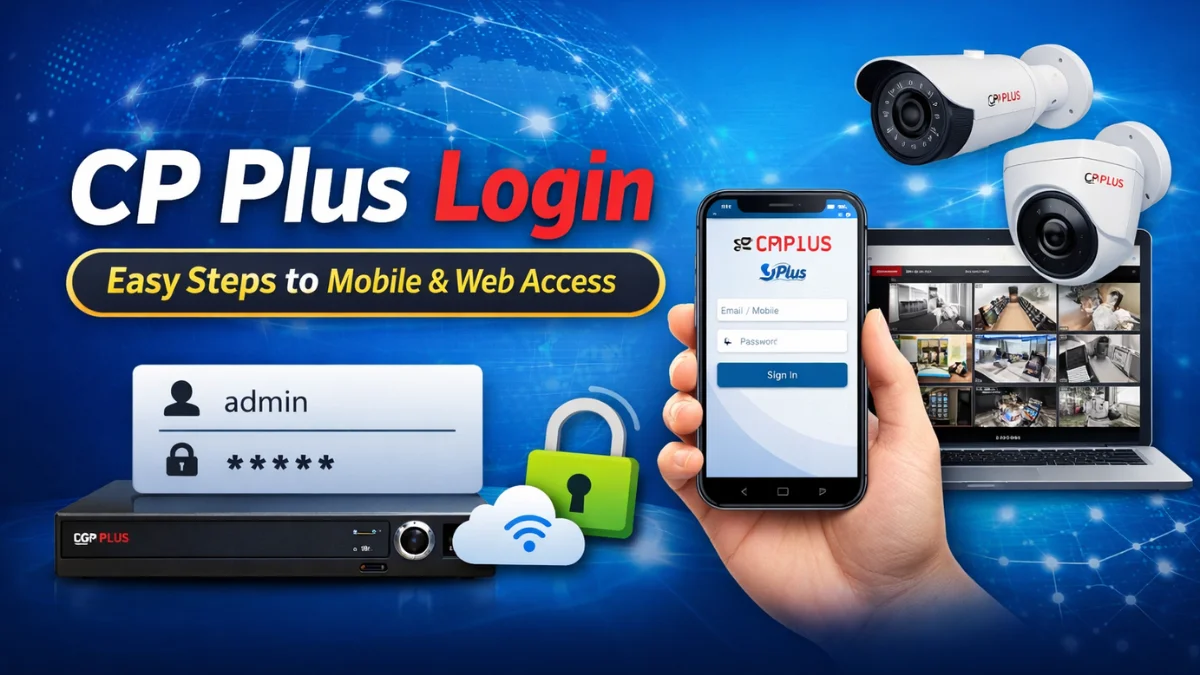
If you use CP Plus CCTV cameras, then knowing how to properly log in to CP Plus platforms like the gCMOB app, iCMOB app, and CP Plus web portal is very important. A successful CP Plus login helps you access live camera footage, recorded videos, and manage your DVR/NVR remotely.
In this guide, we will explain how to log in to CP Plus on mobile and web, common issues, and solutions.
What is CP Plus Login?
CP Plus Login is the process to enter your username and password to access your CP Plus CCTV system on a smartphone or computer. Once you log in, you can:
- Watch live camera feed
- Check recordings
- Manage DVR/NVR settings
- Share device access with family or staff
- Enable notifications and alerts
How to Login to CP Plus on Mobile (Android / iPhone)
Step-by-Step Guide
- Download the app from the Play Store or App Store
- For DVR/NVR: gCMOB
- For IP Camera: iCMOB
- Open the app and tap Login / Register
- Enter your email ID or mobile number
- Enter your password
- Tap Sign In
📌Important: If you are a new user, click on Register and create an account first.
How to Log in to CP Plus on a Computer / Laptop
You can view CP Plus cameras on any browser.
Steps
- Open your browser and visit: cppluscloud.com
- Enter your login credentials
- Click Sign In
- Choose your device to access live view and recordings
How to Login to CP Plus DVR/NVR (Local Access)
Follow These Steps:
- Connect a monitor to your DVR/NVR
- Right-click → select Main Menu
- Enter username: admin
- Enter your password
- Click OK
Highlighted Important Points
⭐ Use a strong password (minimum 8 characters).
⭐ Never share your login details with unknown people.
⭐ Keep your CP Plus apps updated for best performance.
⭐ Enable cloud access for remote monitoring.
⭐ If password reset is needed, use registered email or mobile.
Common CP Plus Login Issues & Solutions
| Problem | Reason | Solution |
|---|---|---|
| Incorrect Login | Wrong password | Reset password from login page |
| Device Not Showing | Not added or offline | Reset password from the login page |
| App Not Working | Outdated version | Update app |
| Web Login Failed | Browser issue | Re-add device/check internet |
How to Reset CP Plus Login Password
- Open the app → Forgot Password
- Enter registered mobile or email
- Enter OTP
- Set a new password
FAQs: CP Plus Login
Q1. Which app is used for CP Plus login on mobile?
👉 gCMOB for DVR/NVR & iCMOB for IP cameras.
Q2. What is the default username for CP Plus DVR?
👉 Default username is admin.
Q3. How can I watch CP Plus cameras on a laptop?
👉 Open browser → cppluscloud.com → login → select device.
Q4. I forgot my password. What should I do?
👉 Click Forgot Password, enter your email/phone, and reset.
Q5. Why am I unable to log in remotely?
👉 Check the internet status on the DVR and restart your router.
Conclusion
By following this guide, you can easily perform a CP Plus Login on mobile devices, computers, and local DVR/NVR access. Always keep your account secure and up to date for optimal performance. If you still face issues, contact your CP Plus dealer or technician for support.
Latest Post
- CCTV Cameras Can Be Hacked: How to Secure Your CCTV in 2026
- India’s CCTV Market Is Changing—Here’s What It Means for Hikvision, Dahua and Indian Brands
- Guanlan Encoding by Hikvision – Features, Benefits & Complete Guide (2026)
- HikTech Star Show 2026 – Complete Guide, Benefits, Registration & Tips
- Plugins for Eco Series – Download, Install & Fix Plugin Issues